
Install WhoTookIt on your computer
WhoTookIt runs in your browser, and you can also install it so it opens in its own window with its own icon, like any other app. It is the same WhoTookIt: the same account, groups and items, and nothing extra to download from a store.
- Its own window, without the address bar and tabs.
- An icon on your taskbar, Dock or Start menu.
- One click to open, and you stay signed in.
Pick your browser: Microsoft Edge · Google Chrome · Safari on a Mac · Safari on an iPhone or iPad. Firefox on a computer can’t install web apps; use WhoTookIt in a tab, or install it from Edge or Chrome.
Start from www.whotookit.com/home in the browser you want to install from. Browsers change their menus now and then, so yours may look slightly different from the pictures.
Microsoft Edge (Windows or Mac)
-
Open www.whotookit.com/home in Edge.
-
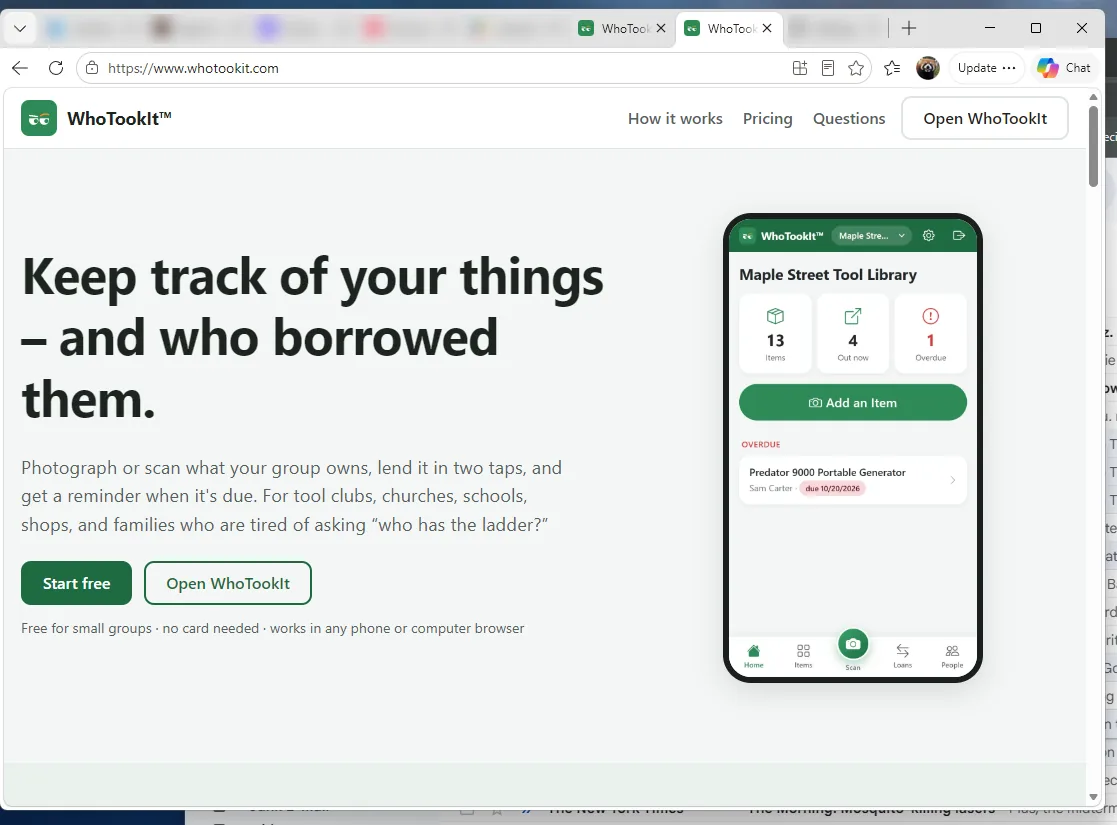
At the right end of the address bar, click the App available – Install WhoTookIt icon.
Don’t see it? Open the menu … (top right), choose Apps, then Install this site as an app.

The install icon, left of the star. -
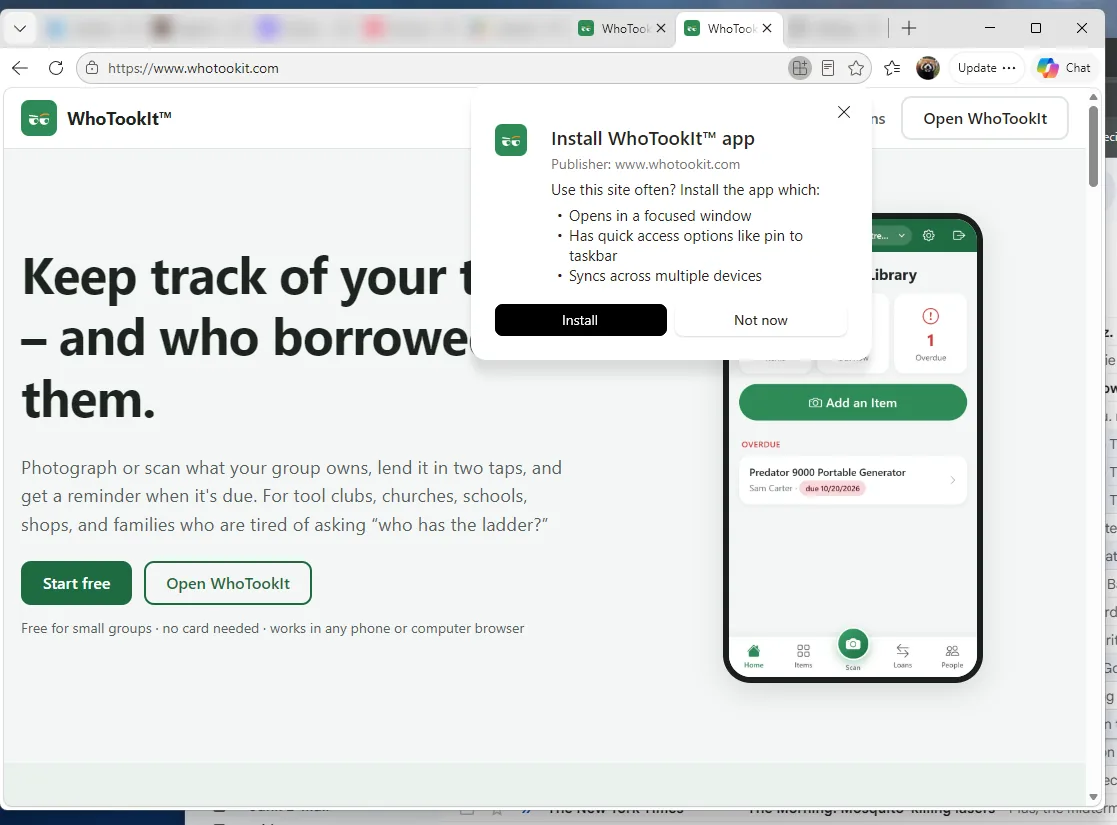
In the box that opens, click Install.
-
WhoTookIt opens in its own window. If Edge asks, you can tick Pin to taskbar, Pin to Start or Create desktop shortcut, then click Allow.
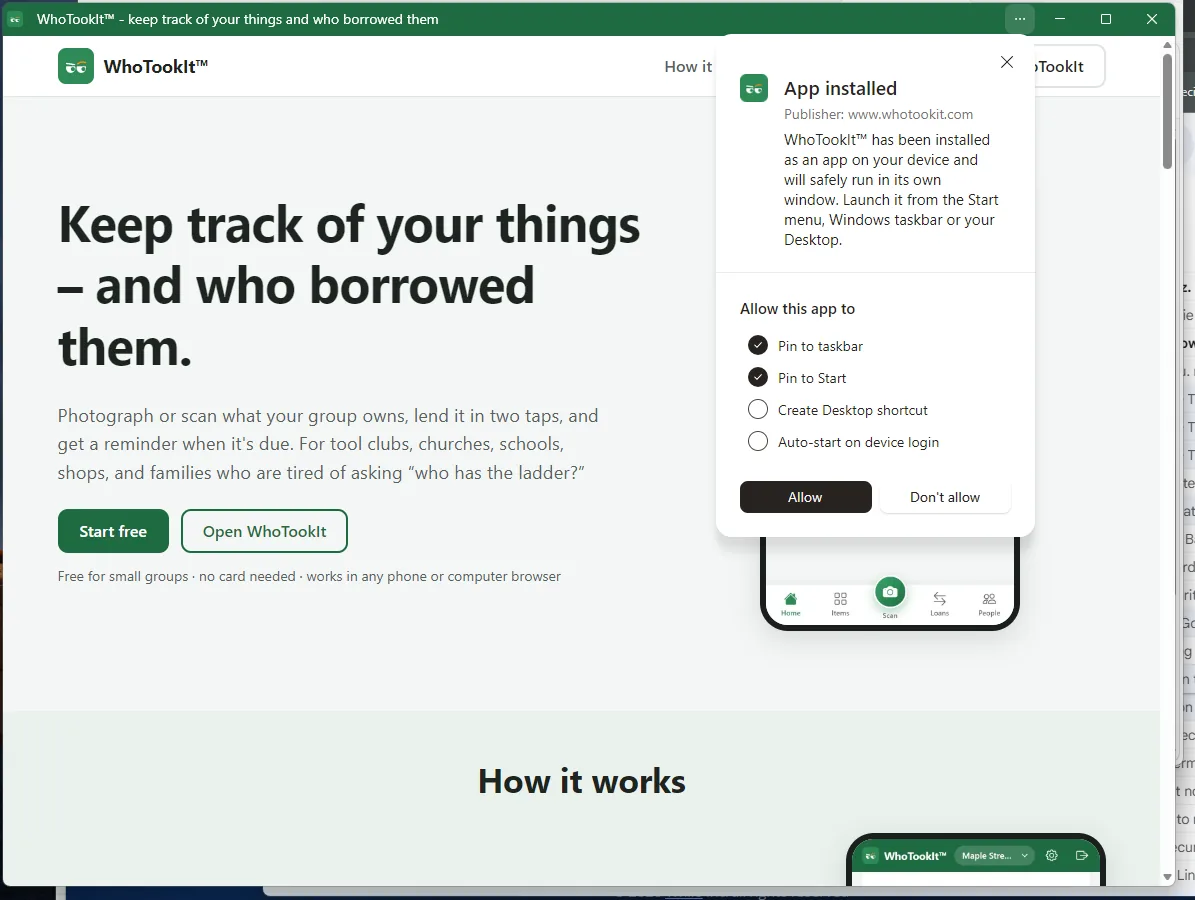
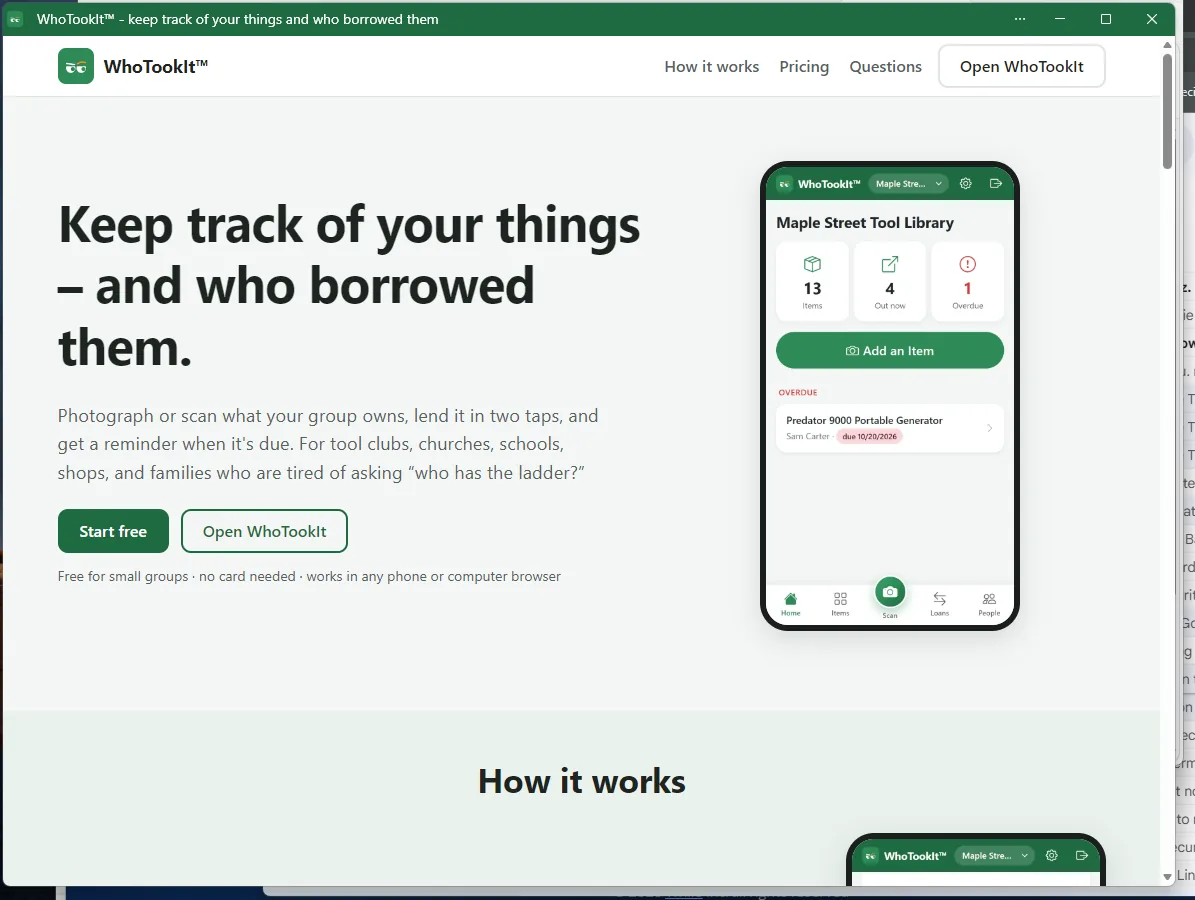
Open it later: from the taskbar or Start menu, or search for “WhoTookIt”. Remove it: in the app window click … then Uninstall WhoTookIt, or in Edge open edge://apps.
Google Chrome (Windows or Mac)
-
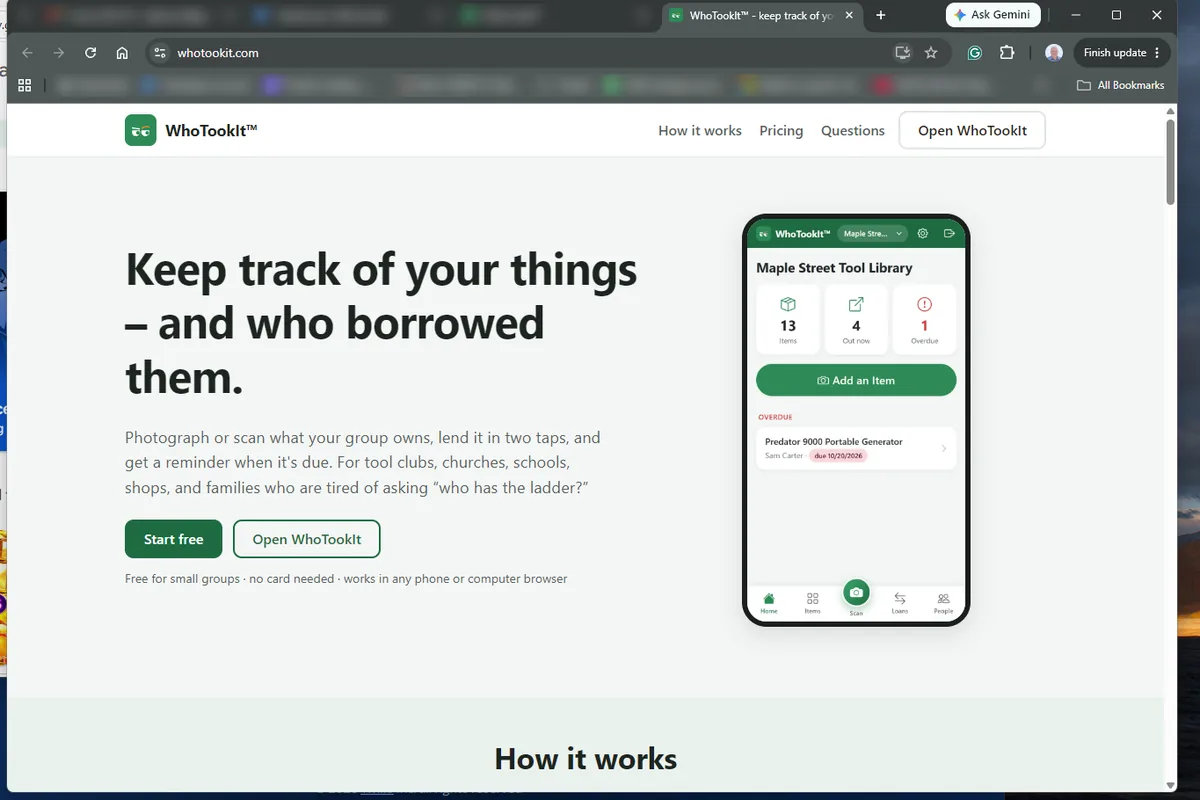
Open www.whotookit.com/home in Chrome.
-
At the right end of the address bar, click the Install WhoTookIt icon (a small screen with a down arrow).
Don’t see it? Open the menu ⋮ (top right), then Cast, save, and share, then Install page as app (on some versions: Install WhoTookIt).

The install icon, left of the star. -
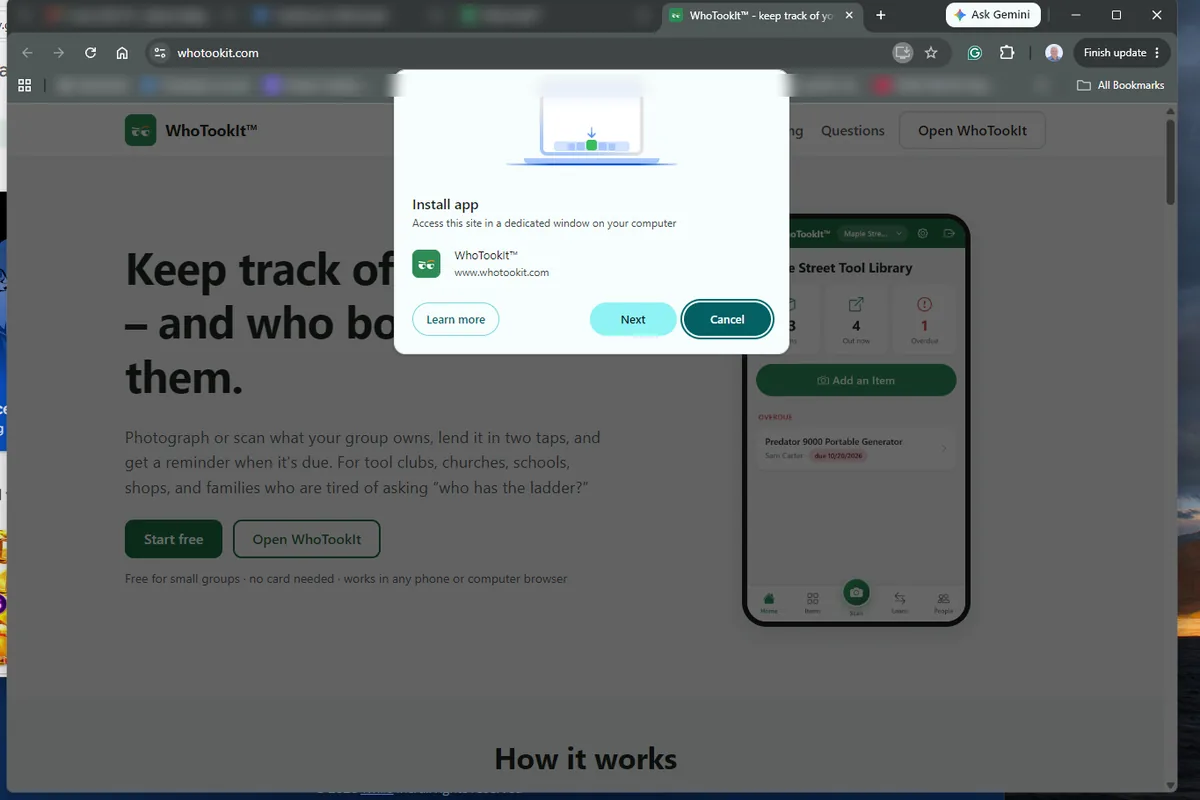
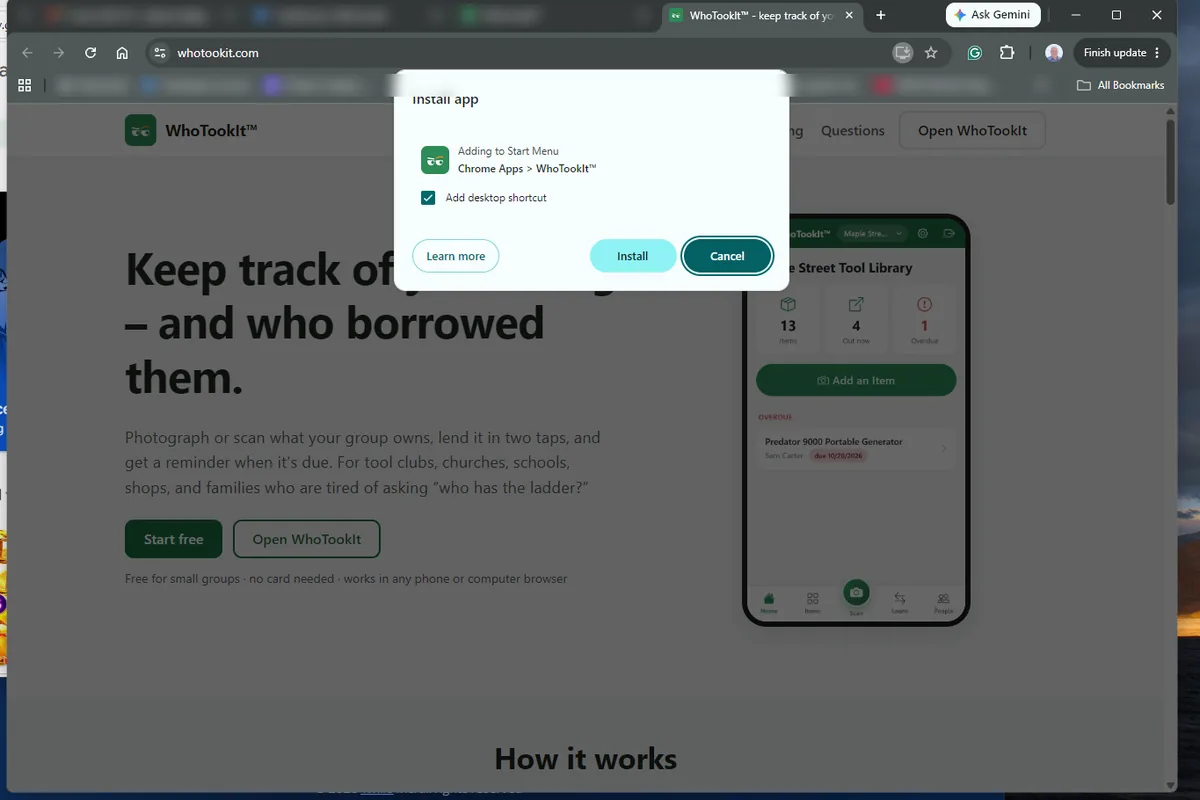
In the box that appears, click Next. Tick Add desktop shortcut if you want one, then click Install.
-
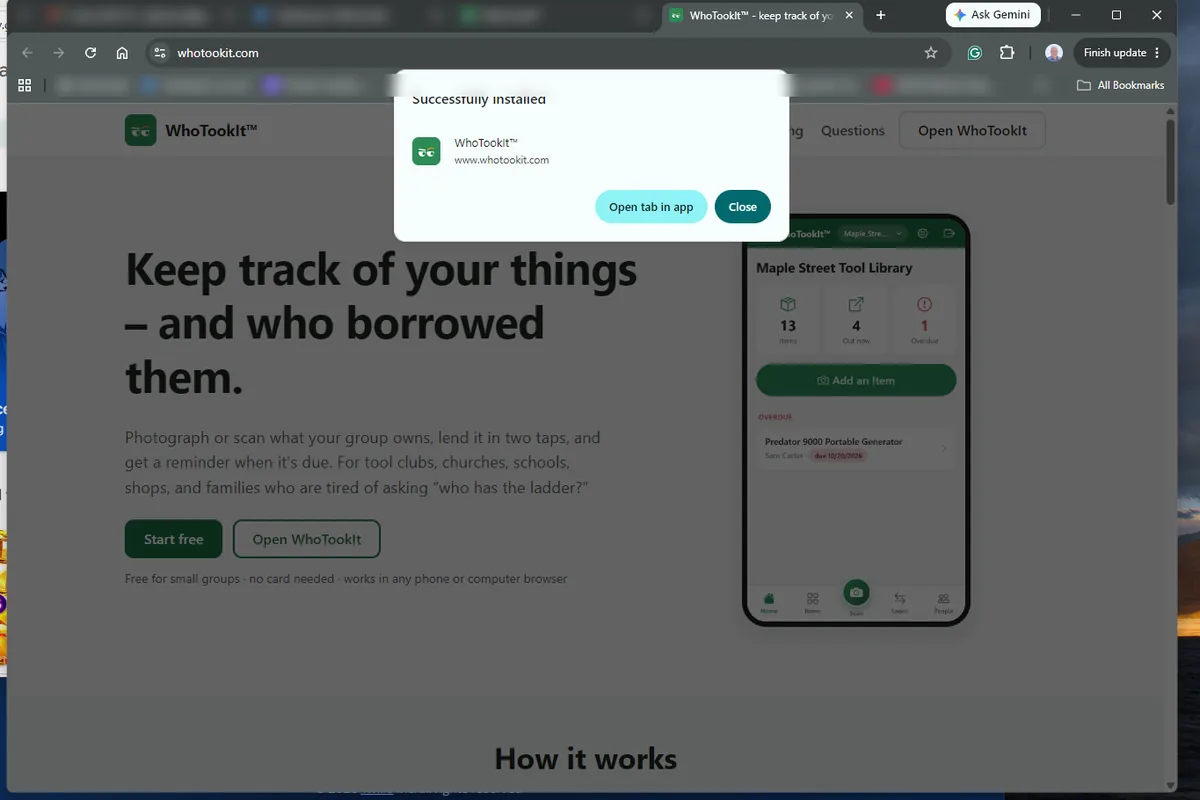
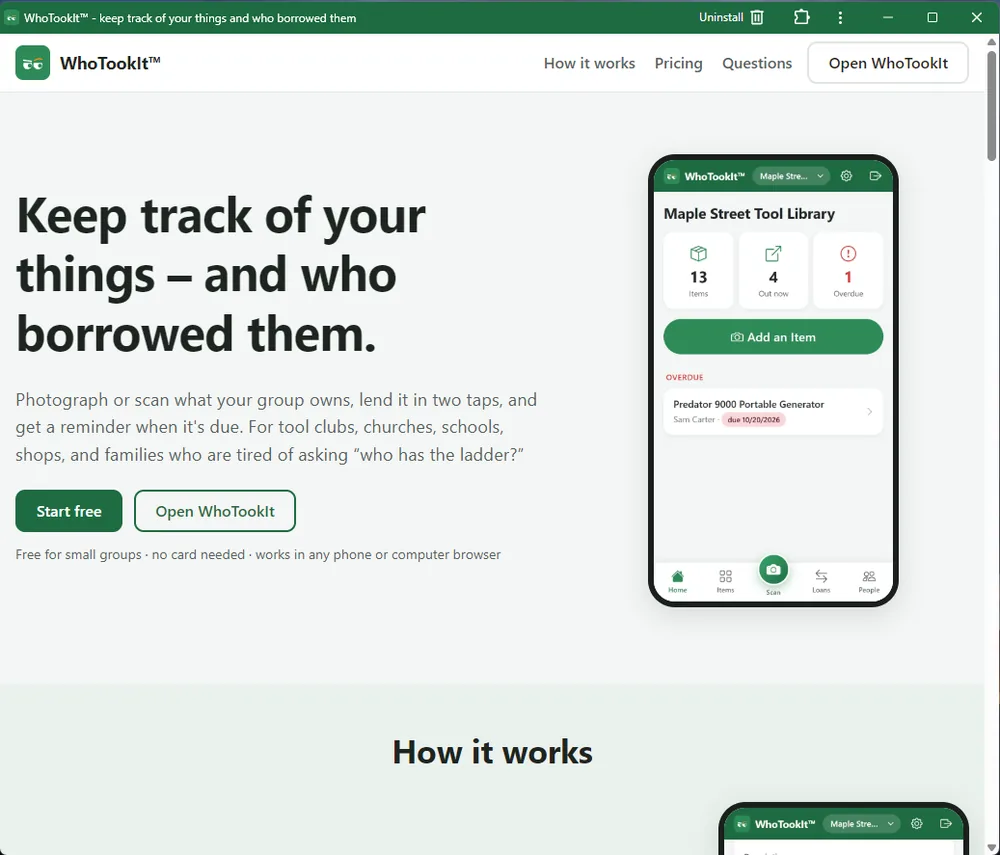
Chrome says Successfully installed and WhoTookIt opens in its own window. Windows adds it to the Start menu; on a Mac it goes in your Applications folder.
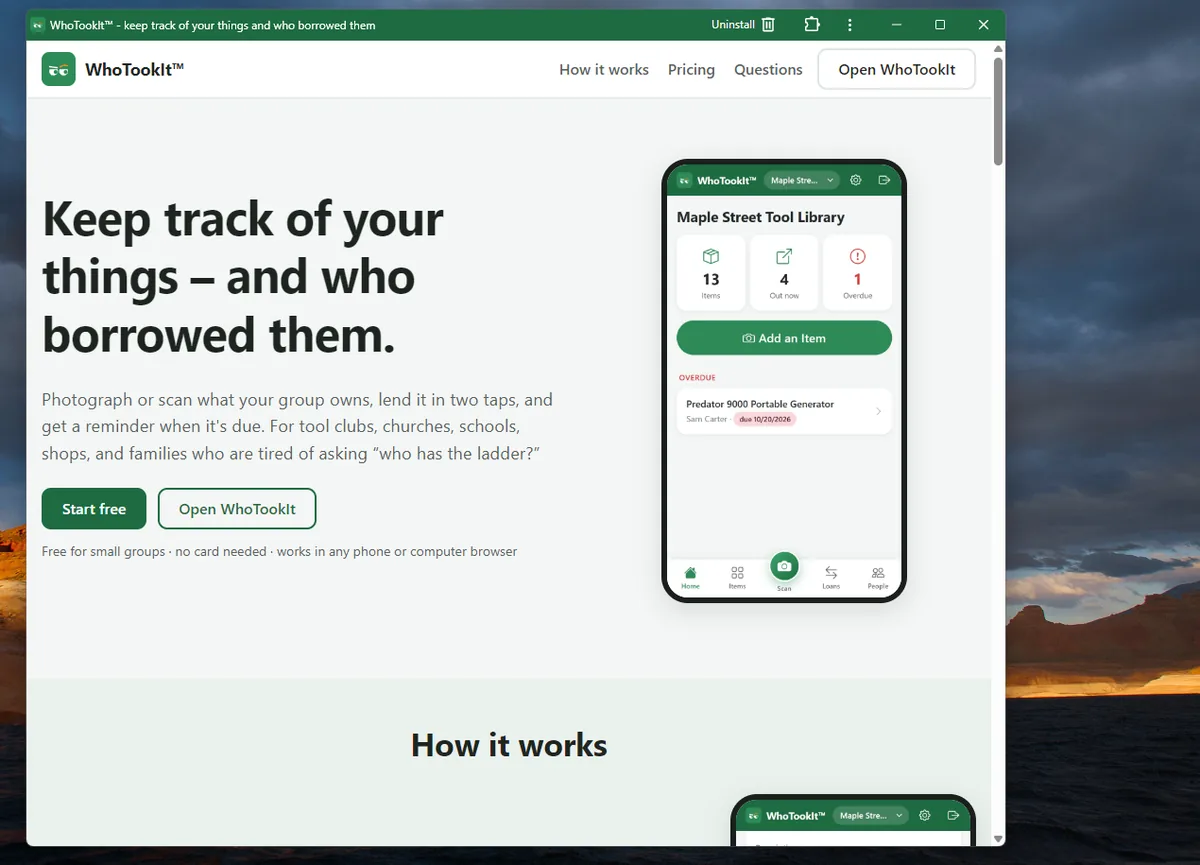
Open it later: from the Start menu, Launchpad or by searching for “WhoTookIt”. Remove it: in the app window click ⋮ then Uninstall WhoTookIt, or in Chrome open chrome://apps, right-click it and choose Remove.
Safari on a Mac
Needs macOS Sonoma (14) or newer. On older versions Safari can’t install web apps; use Chrome or Edge instead.
-
Open www.whotookit.com/home in Safari.
-
In the menu bar choose File, then Add to Dock…. (You can also click the Share button in the toolbar and choose Add to Dock.)
-
Leave the name as WhoTookIt and click Add.
-
The WhoTookIt icon is now in your Dock. Click it to open WhoTookIt in its own window.
Remove it: drag the icon out of the Dock, or right-click it and choose Options, then Remove from Dock; to delete it fully, drag WhoTookIt from your Applications folder to the Trash.
Safari on an iPhone or iPad
-
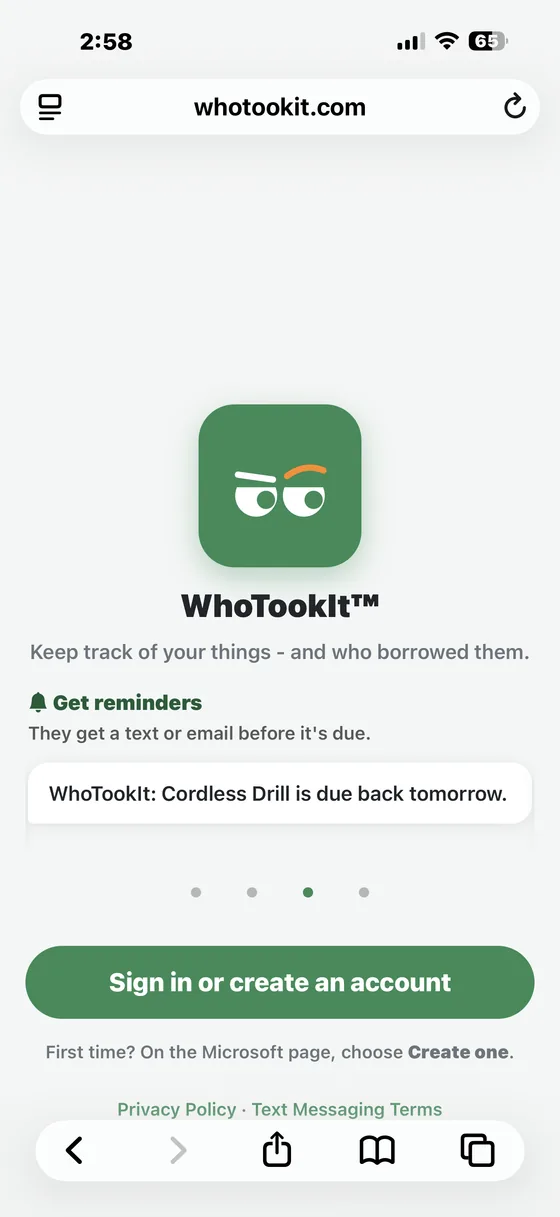
Open www.whotookit.com/home in Safari.
-
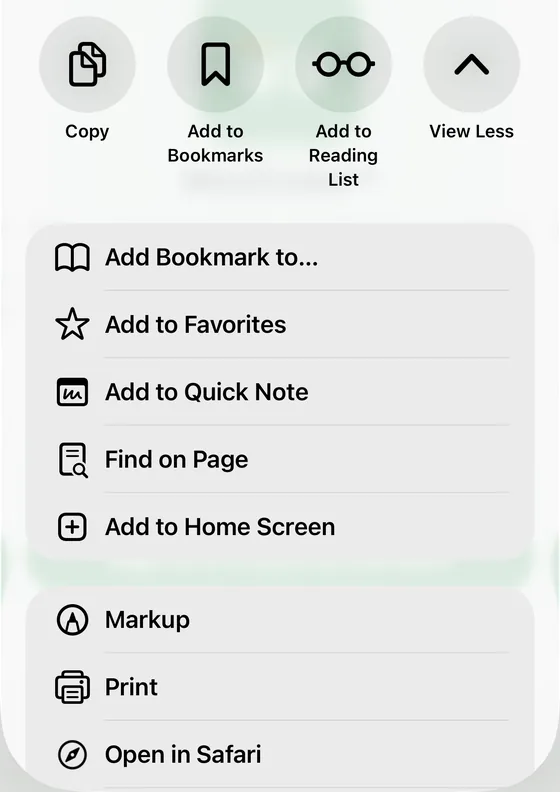
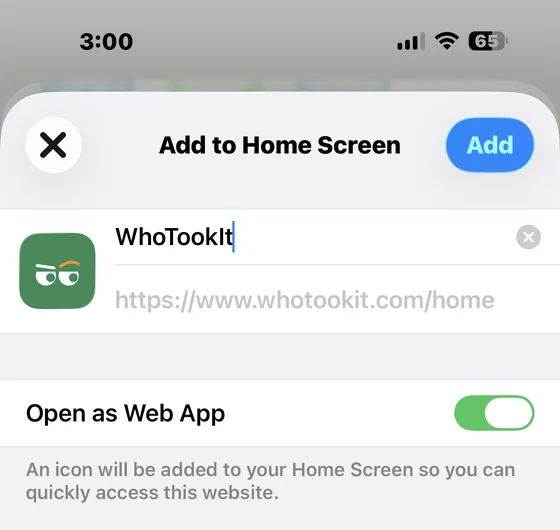
Tap the Share button (a square with an arrow pointing up). Scroll down the list and tap Add to Home Screen.
-
Leave Open as Web App switched on, then tap Add. The WhoTookIt icon appears on your Home Screen.
If something doesn’t look right
I don’t see an Install button
Use the browser’s menu instead (steps above). Check that you are on www.whotookit.com/home and not another address, and that your browser is up to date. Private or InPrivate windows can’t install apps.
It asks me to sign in again
The installed app is its own window, so sign in once with the same email and password. After that it keeps you signed in.
Is it a different WhoTookIt from the one in the browser?
No. It shows the same website in its own window, so your groups, items and settings are the same everywhere you sign in.
What about phones?
On an iPhone or iPad use the Safari steps above. On an Android phone, open the site in Chrome and choose Install app or Add to Home screen from its menu.